If you are in need of a branded professional email address and is not planning to launch a website as well as not ready to spend money for website hosting or website designing, there is an option for you to get two professional email addresses for under 500 Indian Rupees. You must have a working active google mail and be ready to buy a domain name to get started.
Step One: Buy a Domain Name from a Domain Registrar
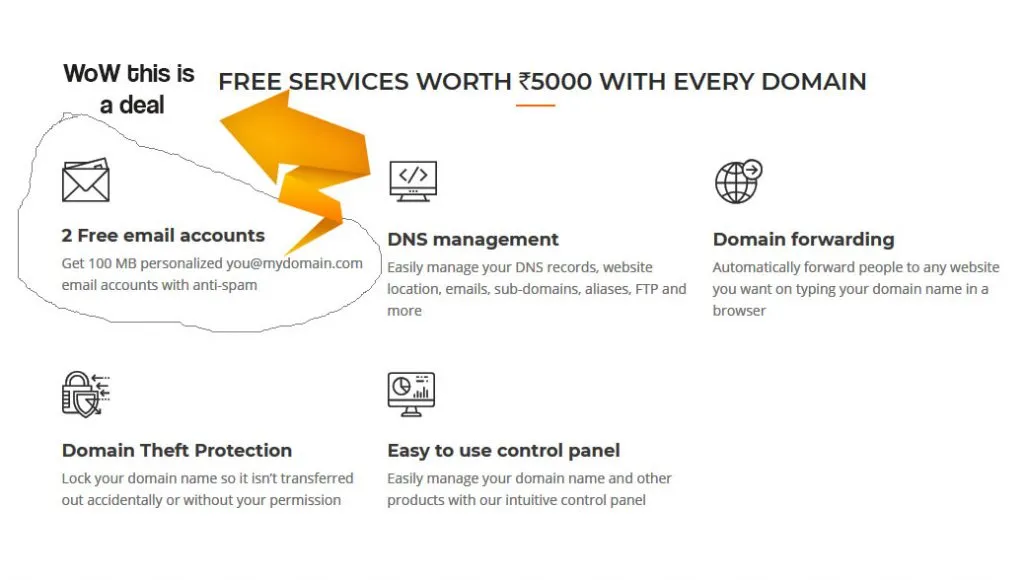
Bigrock India sells .IN domains for about Rs 471 for one year registration. You can buy that to register the domain name that resembles your brand or business. A domain registration with 2 free email accounts is a common offer from Indian domain registrars — the free accounts are typically capped at 100 MB, but most also provide unlimited forward-only email addresses. For example, if you choose ceo@yourcompany.com as a forward-only email account, you can set all incoming emails to ceo@yourcompany.com to be forwarded to your present active gmail id, yourcompany@gmail.com. You can always use the domain name later to launch a business website too.
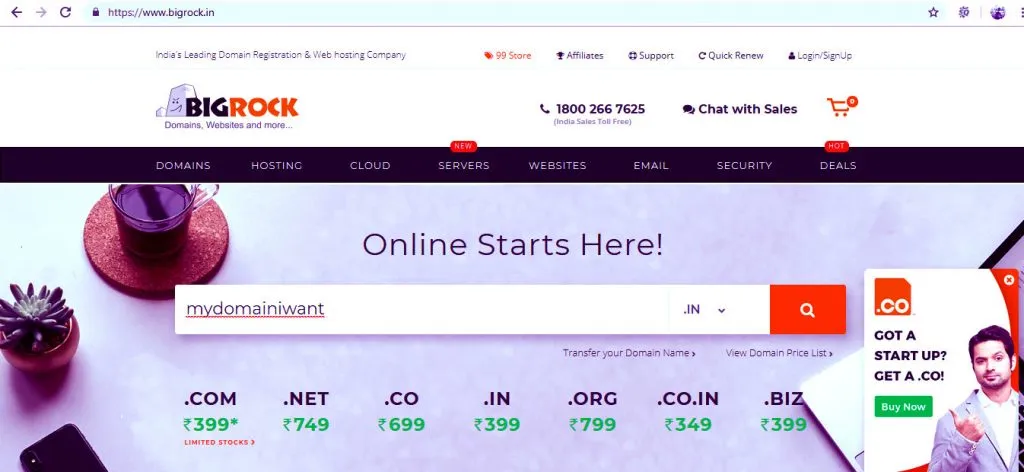
Step Two: Search for a domain name your customers can identify with your brand
If someone else has registered the domain name before you, you won’t get it. So you have to search on the registrar’s website and, if the domain name you want is available, click buy. Disable extra features the company would want to sell you — you may not need them in most cases.
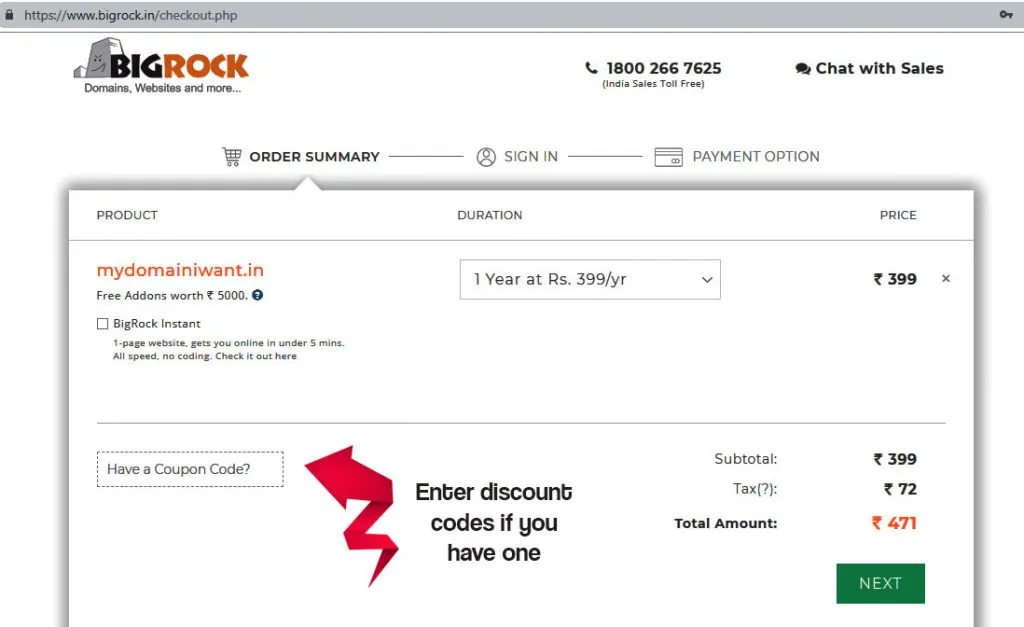
Step 3: Enter a discount code if you have one
Coupons can be found at different blogs as well as from the registrar’s sales team. Now complete payment using debit card / credit card / net banking / UPI etc. and complete the sale.
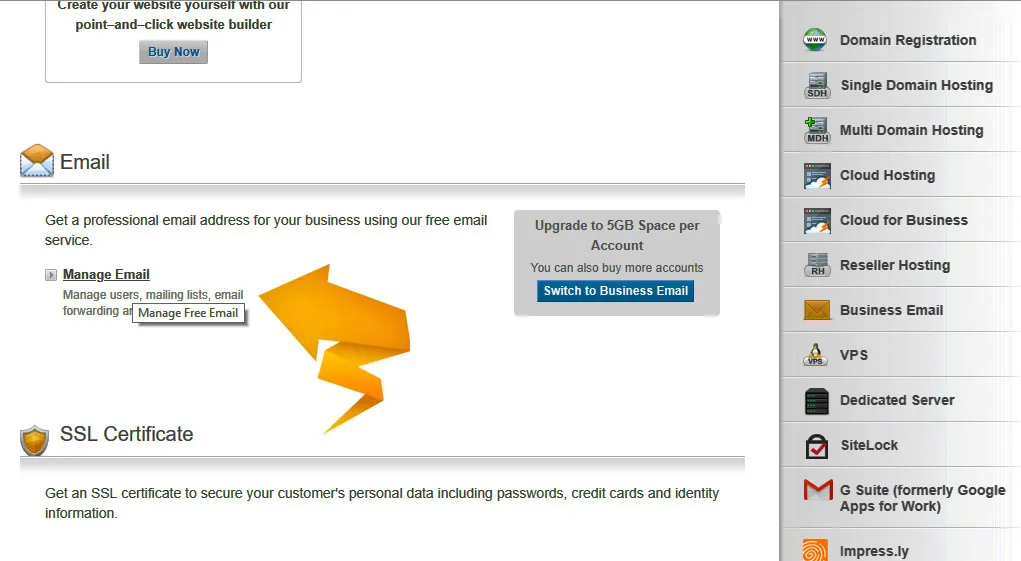
Step 4: Create two FREE email addresses in your registrar’s control panel
Go down in the control panel and look for the Email option. Do not click the Business Email option, which is a paid email service — this is the free service of 100 MB email accounts that we are talking about. Create two free email accounts of your choice.
Step 5: Forward incoming emails to your Gmail account
Login to your webmail by browsing to your registrar’s webmail portal, and enter your userid and password.
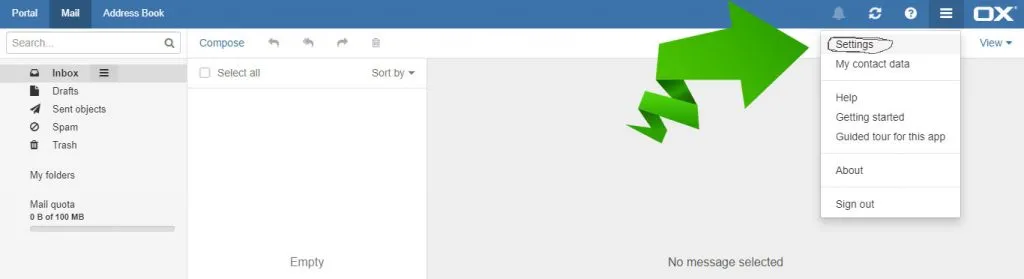
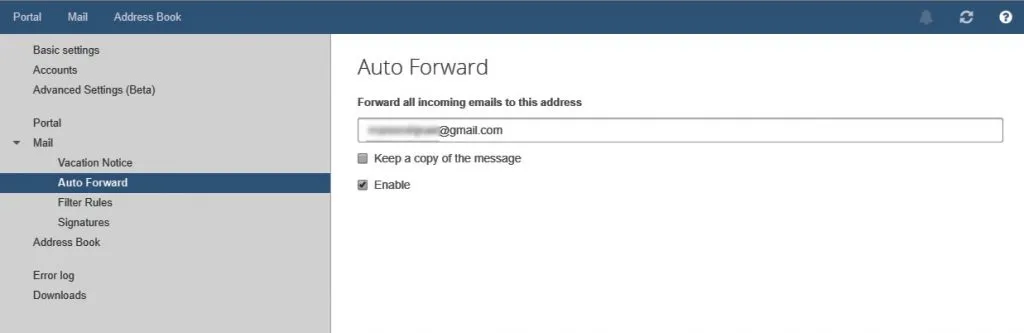
Go to Mail > Auto Forward and enter the gmail address. Uncheck “keep a copy of the message” (remember, you only have a 100MB quota). Check “Enable”.
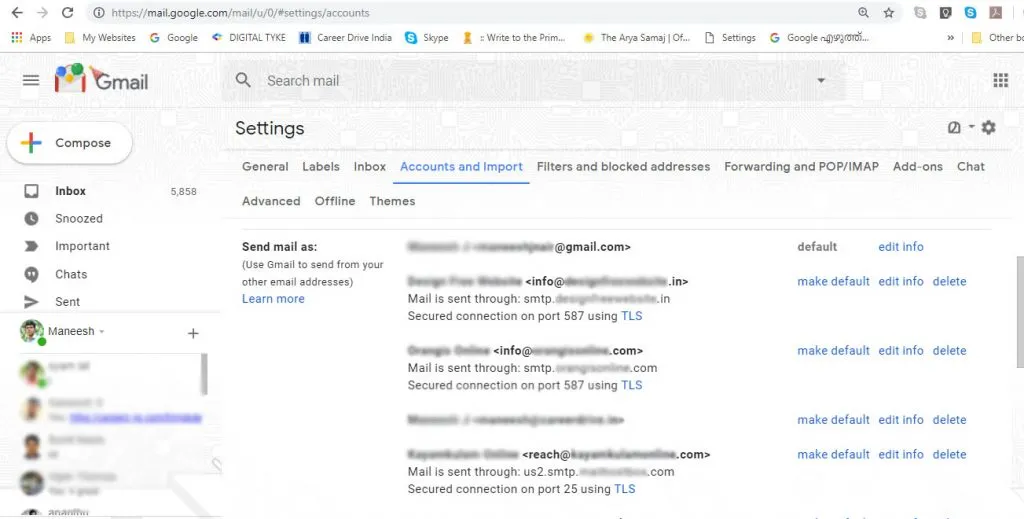
Step 6: Set Gmail’s default sending address as your branded email (ceo@yourcompany.com)
In Gmail settings, find “accounts and import”. Go to “Send mail as” and click “Add another email address”. After entering the name and email address, the next step is verification — enter the SMTP server details along with the login and password you set up in your registrar’s email dashboard. You’ll then receive a verification email from Gmail to your branded email id. Refer to Google’s support documentation for details.
If you still can’t figure out how to do it, feel free to write to me so that I can help you own your own business email addresses for a bargain. You can comment your doubts regarding this method.